 from the left navigation menu.
As a Nexpose Global Administrator, you have the ability to enable dashboard functionality for your organization. Dashboards are personalized views into your environment that allow users to explore all of your vulnerability management data in one place and can be customized to focus on the information each user cares about. Once the dashboard functionality is enabled, users can access it automatically from their Nexpose consoles: their Nexpose credentials will serve as a single sign-on. To learn more, see Overview of dashboards.
Dashboards are powered by the Rapid7 Insight platform. This means that when you enable dashboards, your organization's data will be synchronized to an AWS cloud instance. Rapid7 takes your security and privacy seriously, and has put measures into place to protect your data security. For more information, see https://www.rapid7.com/trust/. When enabling dashboards, you will be asked to confirm that you are agreeing to synchronize your organization's data to the cloud.
Your vulnerability and asset data will be synced to the Rapid7 Insight Platform after you activate Exposure Analytics. During the initial syncing, the historical data from the past six months is uploaded to the platform. The uploaded data, which includes your assets, vulnerabilities, and sites, is used to by your dashboards to analyze and monitor trends in your environment. For more information on the data transmitted, see Data Transmitted to the Insight Platform. After the initial syncing, your security data will be automatically uploaded to the platform as soon as it is collected and assessed in your Nexpose Security Console.
In order to successfully upload data to the platform, your Nexpose Security Console must be able to create a TCP connection with the following URLs:
If you selected Europe (Frankfurt) for the EA deployment, you'll need to whitelist the following URLs:
To enable access to Nexpose dashboards, several conditions must be in place:
If the above conditions are met, and you are a Global Administrator, you will have the option to enable dashboard functionality. To do so:
from the left navigation menu.
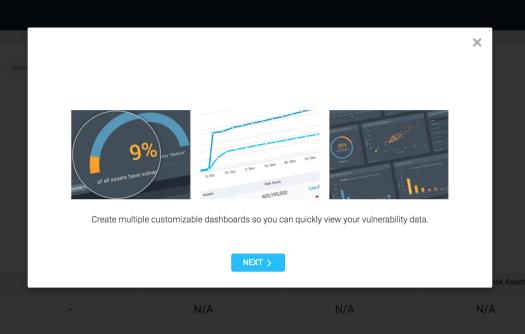
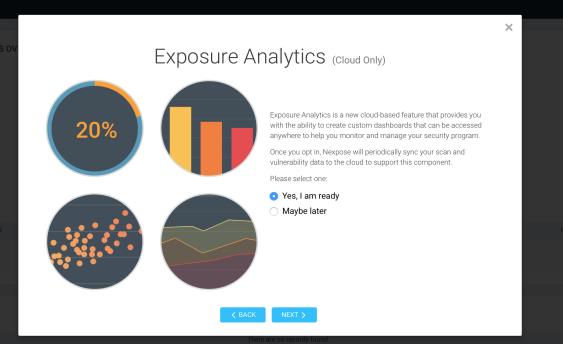
Note: If you select Maybe later, the next step will exit you from the dialog. See Enabling or disabling dashboards from the Administration page for how to enable the feature later when you are ready.
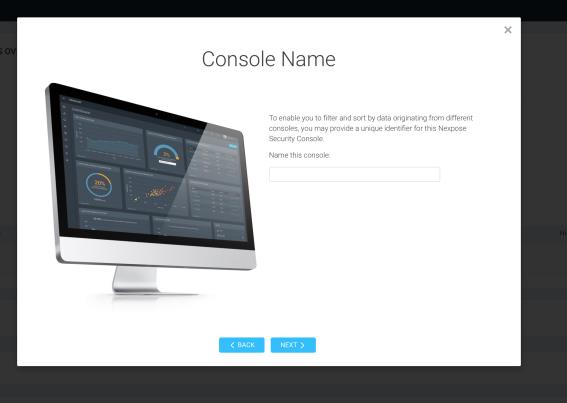
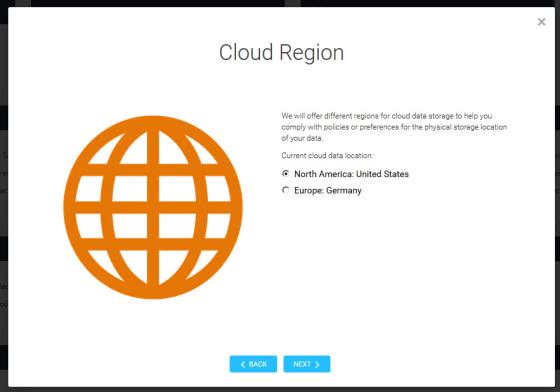
Another way to enable dashboards, or to disable them, is from the Administration page. This is how you can enable dashboards if you initially opted out in the process described above.
Disabling dashboards
To have access to this section, the following conditions must apply:
To enable dashboards from the Administration page:
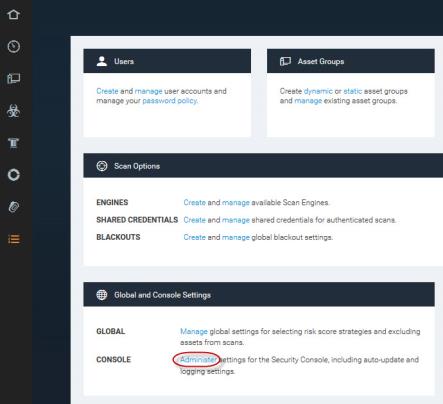
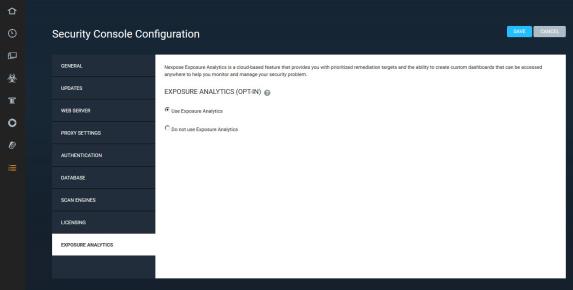
from the Nexpose left navigation menu. To disable dashboards from the Administration page:
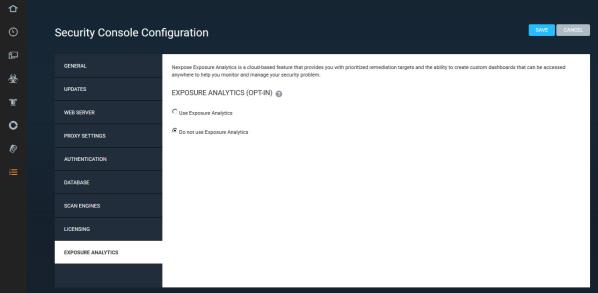
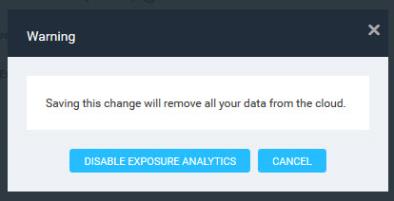
If you have disabled dashboards, you will still be able to enable them again at a later date as long as the required conditions are still met. Similarly, the option to disable them will remain available once they are enabled.
The following types of information are transmitted to the Insight platform:
Nexpose does not transmit user or service credentials of any kind to the Insight platform.